Delivery available in B14, B29, B30, B31, and B38 · £15 minimum order · Up to 80kg capacity · Eco-friendly delivery · Local retailers

Heavy groceries from local retailers, delivered to your door

Shop from nearby stores and get fresh food, household essentials, pet supplies, and bulky items delivered through one simple, eco-friendly service across B14, B29, B30, B31 and B38.

Heavy groceries from local retailers, delivered to your door

Managing Store Support

The Store Support feature allows you to efficiently manage customer queries and concerns through support tickets. Customers can reach out to you for assistance, and you can handle these requests directly from your dashboard.

Accessing Support Tickets

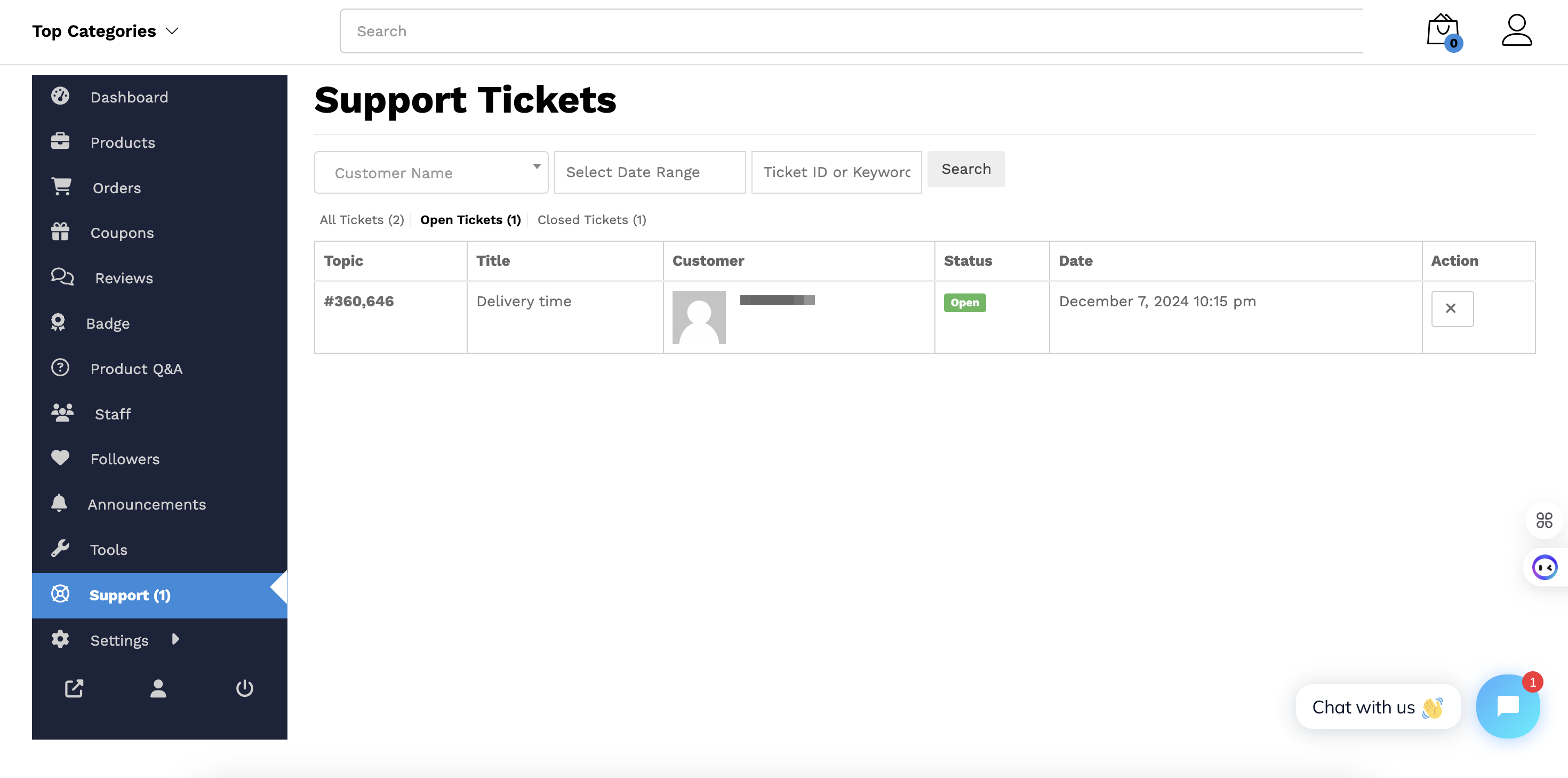
  1. Navigate to Supplier Dashboard → Support.

    • Here, you’ll see all the support tickets submitted by your customers.


supplier-support-ticket

2. Filter and Manage Tickets:

  • Use the filtering options to find specific tickets based on:
    • Customer Name
    • Date Range
    • Ticket ID
    • Keywords
  • Tickets are categorized into Open and Closed sections for better management.

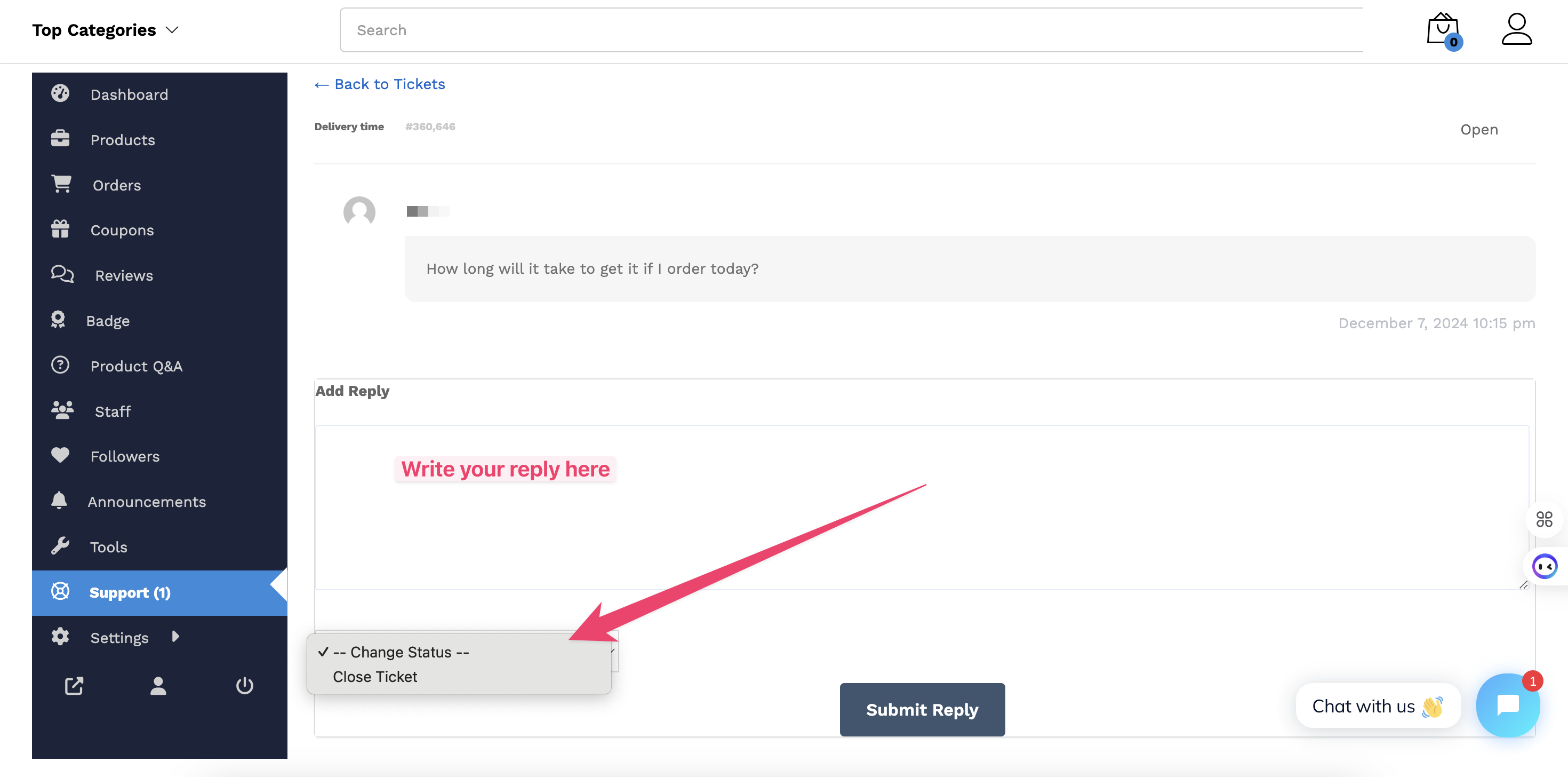
Responding to Support Tickets

  1. Click on a ticket to view its details.

    • This will take you to the ticket details screen.
  2. From here, you can:

    • Reply to the ticket to address the customer’s query.
    • Change the ticket status (e.g., mark as closed after resolving the issue).


supplier-support-ticket-details

Enabling the Support Button on Store and Product Pages

By default, customers can create tickets on the order page. However, you can enable a Support button on your:

  • Store page
  • Single product pages

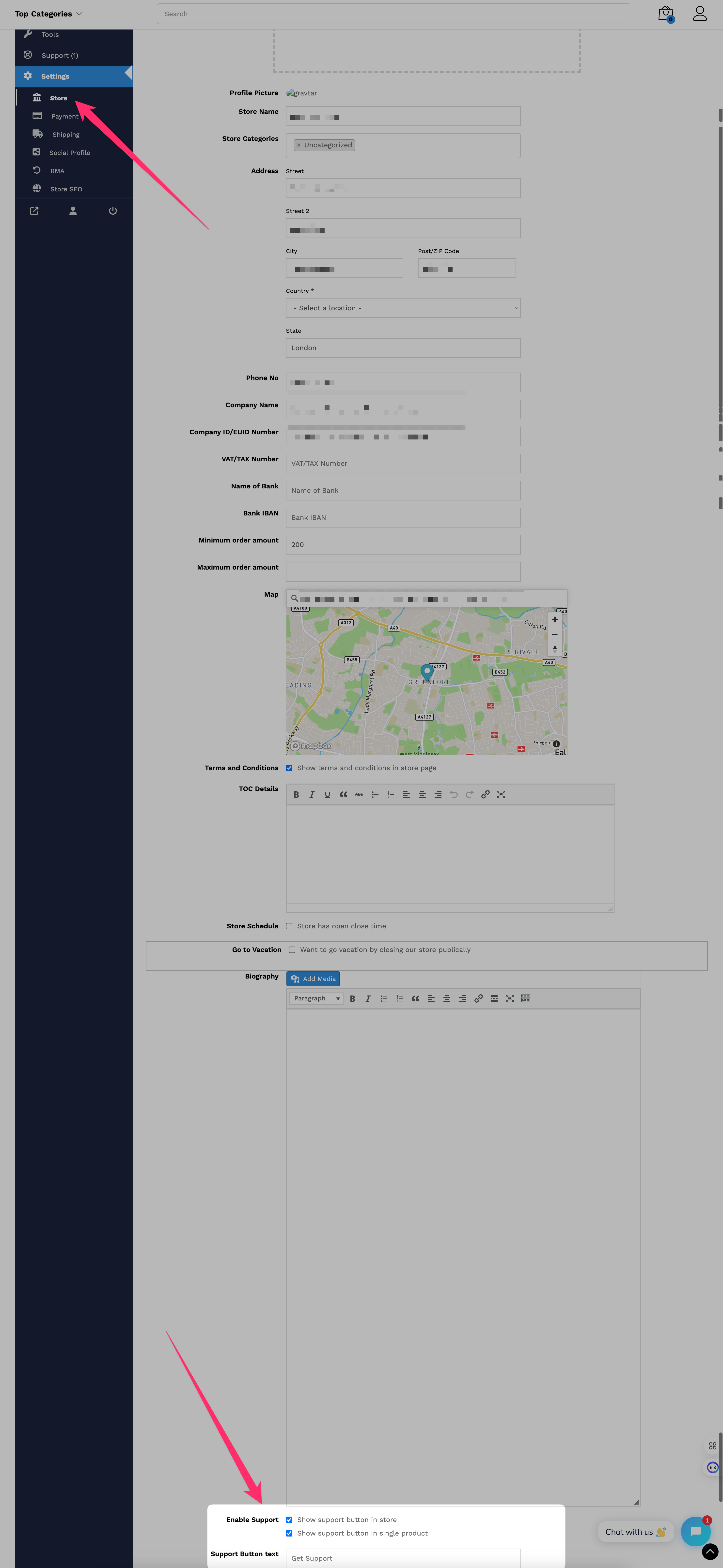
How to Enable the Support Button:

  1. Go to Settings → Store on your dashboard.

  2. Enable the Support Button option.

  3. You can also customize the button text to align with your branding.
supplier-support-ticket-settings

🎉 That’s all! The Store Support feature helps you stay connected with your customers, address their concerns promptly, and build trust in your store.